We often think about EasyMorph workflows as being all about preparing data. Exporting it en masse from multiple sources; cleansing, merging and transforming it as needed; before loading it into our chosen BI or reporting tools.
But EasyMorph workflows should really be considered a tool for data automation in a broader sense. And in fact, data doesn’t have to mean lots of columns and rows either; we can build workflows to automate single pieces of information also.
Let’s look at some of the ways EasyMorph can help us to automate repetitive tasks:
Scheduling and event based workflows
Before we consider specific ways EasyMorph can help to automate our tasks, let's briefly look at how we can automate our existing workflows.
Scheduling is the most obvious starting point. We can of course schedule tasks to run in EasyMorph Server. From once a minute to the last Tuesday of the month, we can set our workflows to run as needed and know that they will be taken care of without us needing to lift a finger.
NOTE: We can set EasyMorph Server to send us an alert should our scheduled tasks fail for any reason. More about this later.
One commonly overlooked tool for scheduling workflows is the EasyMorph Launcher, a companion app which ships with EasyMorph Desktop. It can be thought of as a light-weight alternative, great for scheduling individual automations and those workflows which are considered less business critical.
Scheduling workflows is great, but sometimes we need automations that react to certain events. Let’s consider a simple workflow to process new records in a database table. If I schedule my workflow to run once an hour, then new records may take up to one hour to be picked up by the workflow. OK, so I schedule my workflow to run once a minute instead. This will certainly speed things up, but it could cause additional problems and complexity, such as:
-
There will be increased load on my database which may be problematic. I need to ensure that the query I’m using to check for new records is as efficient as possible.
-
The likelihood of there being no new records will be much higher and so I need to handle checking this in my workflow and acting accordingly.
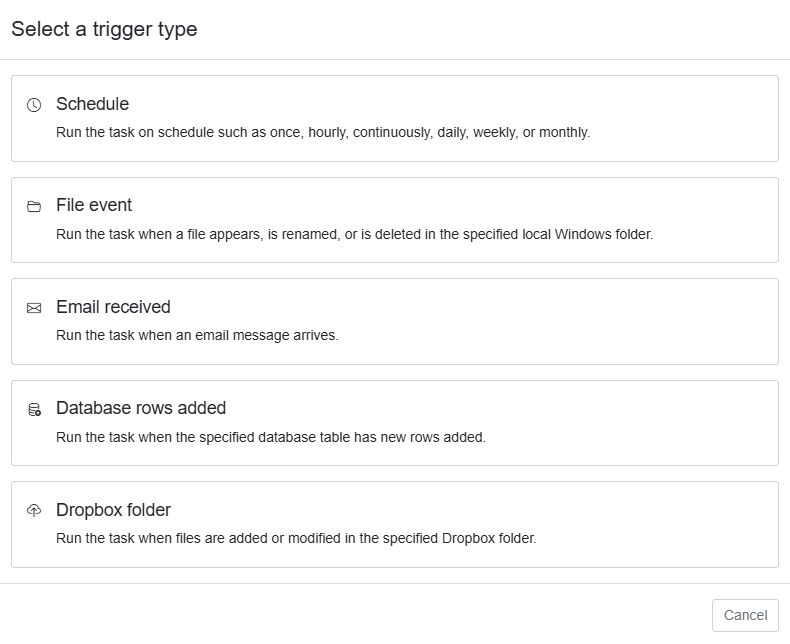
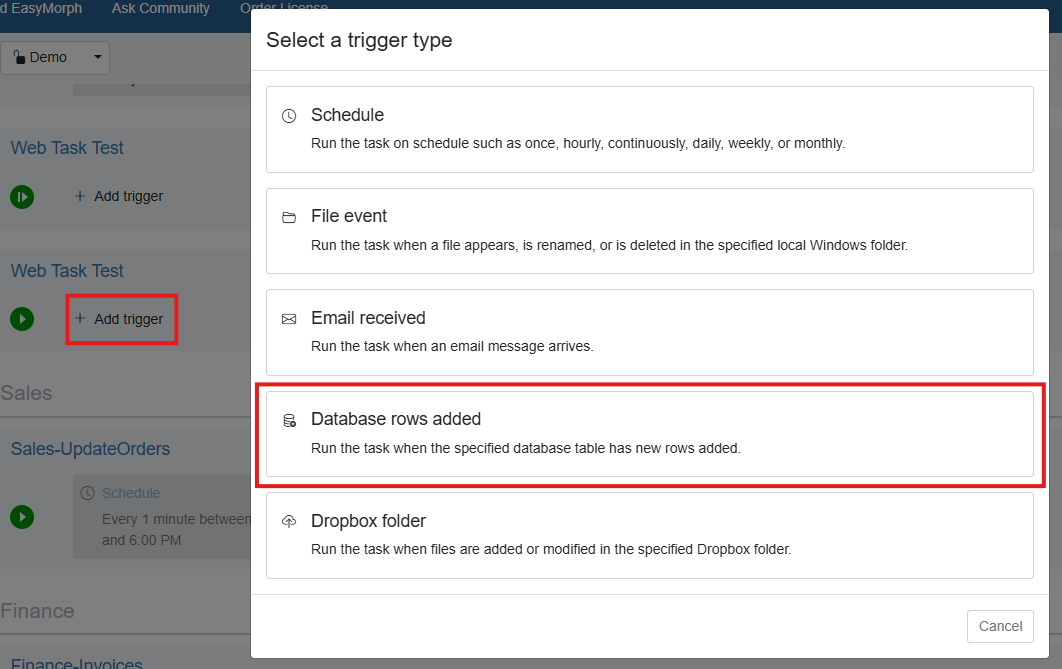
Thankfully, as well as schedule triggers, EasyMorph Server tasks can have event based triggers also. There are more triggers planned for future versions, but at the time of writing, the following trigger types are supported:
-
File event trigger - run a task when a file appears, is renamed, or is deleted in the specified folder.
-
Email received trigger - run the task when a new email is received in a specified inbox.
-
Database rows added trigger - monitor a specified table in a database and run the task if new rows are added.
-
Dropbox folder trigger - much like the file event trigger but monitoring a folder in Dropbox instead.
These event based triggers are perfect for automating tasks as we’ll look at below.
Uploading, downloading and moving files
Most data preparation and ETL tools have all the features you could ever want for processing data, with one simple exception. All too often, we need to download or move data files before we can extract data from them. There are normally workarounds, such as running batch scripts, but these solutions are messy and require basic coding which is prohibitive for those less technical.
EasyMorph has a bunch of actions specifically to handle these situations; wherever the files may be located. Whether on premise file storage; cloud tools such as Google Drive, Dropbox, Amazon AWS S3 or Azure Blob Storage; or an SFTP site; EasyMorph can move files seamlessly between. Renaming of files is also simple and we can even zip and unzip files all without writing a single line of code. The easiest way to find all of EasyMorph’s file actions is to use the new “Help me choose” dialog.
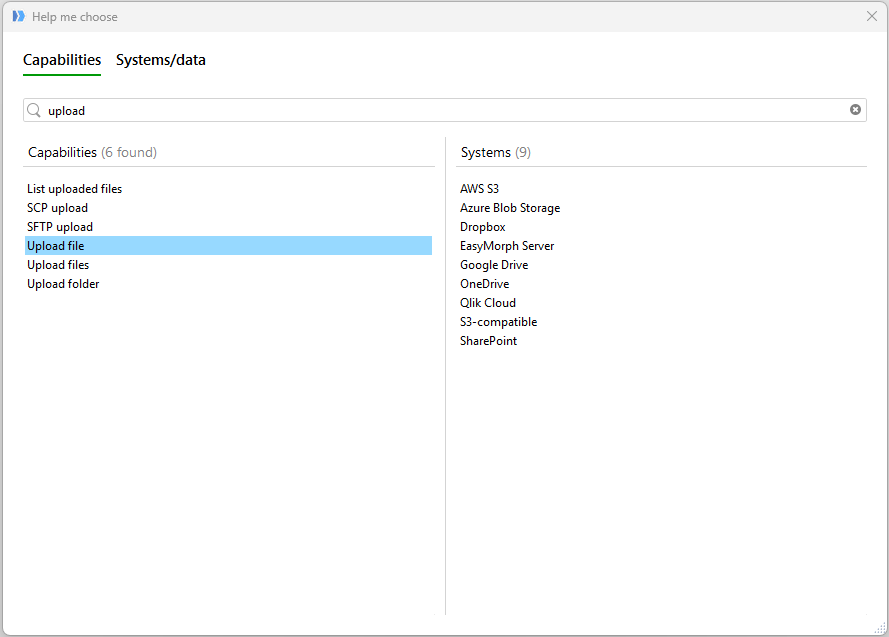
Coupled with the above mentioned File event and Dropbox triggers, automating the handling of files couldn’t be easier. And it doesn’t have to be a precursor to processing data files. One customer I recently spoke to had used the file actions in EasyMorph to monitor a folder containing log files; deleting older ones so that the drive didn’t fill up and stop the related system from working.
Receiving files by email
Much like the above, it's also common for us to receive files by email. Whether it be our suppliers sending us their latest stock data, customers sending us order forms, or reports spat out of a legacy system; all too often it’s down to an individual to save them from the email account to a standard location.
Yet again, EasyMorph has us covered with the Fetch email action, which has the option to download each attachment to a specific folder.
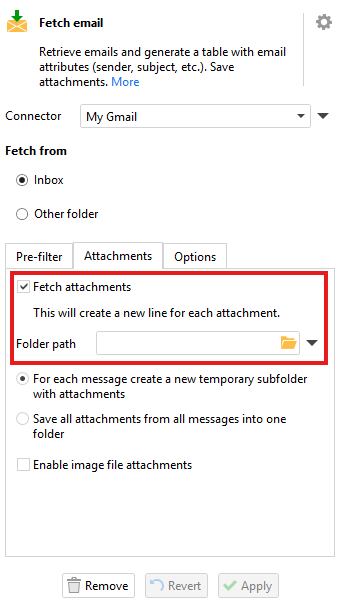
Coupled with the Email received task trigger, we can fully automate this process, meaning one less monotonous task for someone to do manually.
Prioritising your inbox
We all suffer the same problem; we receive an insane amount of emails and simply don’t have the time to go through them all. Wouldn’t it be great if we could filter all the important ones so we can concentrate our time on them?
Email programs and even 3rd party tools have sprung up which claim to use AI to solve this problem, but having tried a few of them, they all had the same issue. They have little or no control of what criteria should be used for the prioritization. Some even “learn” from your past organisation of emails and try to generate rules to replicate it. Which is fine, if I had the time to manually go through all historic emails and organize them. And none that I tried had the ability to consider the contents of any attached files, only if the email has or hasn’t got attachments. All too often important emails get missed. The 3rd party tools also come with monthly subscriptions fees and mean handing over access to your business emails to a 3rd party.
Instead, we can use EasyMorph to achieve prioritization of our emails without any of the above problems. With just a handful of actions we can build a workflow which:
-
Loads in new emails
-
Downloads attachments if there are any
-
Sends them to our on-premise private AI engine using the Ask AI action, with a prompt which is tailored to exactly how we would like the AI to prioritize them. We can then use the returned priority to move the emails into relevant folders.
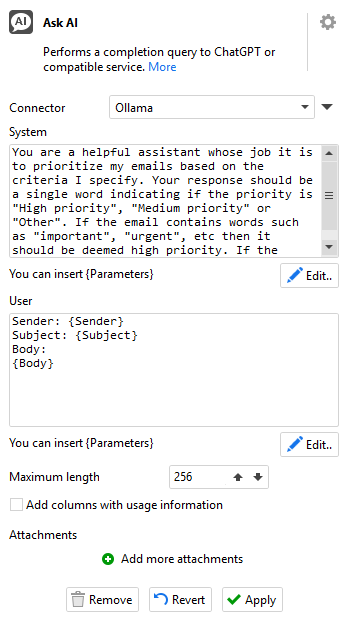
All those important emails are now in a “High priority” folder waiting for me to read and take action as soon as possible. Everything else is filed away for me to get to when I have the time. I can’t take credit for this idea. It originates from a recent chat with an EasyMorph customer who said it saves him several hours each week.
Syncing disparate business systems
As highlighted in our recent webinar, it’s become the norm for businesses to have a huge number of SaaS business tools. The problem is these tools rarely play nicely together. Our CRM system doesn’t sync to our finance system, meaning even when a customer places an order, a manual process has to take over, with one of the sales team notifying the finance department that an invoice must be sent. Even basic information such as customer contact details can be different depending which system you look at.
This is one problem we don’t suffer from here at EasyMorph. Unsurprisingly, we have EasyMorph workflows to handle all of these boring and time consuming system synchronization tasks. If you place an order on our website, it’s immediately registered in our CRM system, synced to our finance system and all of the relevant people get a notification; all without any human intervention.
With support for all major database engines, fantastic API capabilities and native support for a growing list of business systems; building EasyMorph workflows to keep your disparate systems in sync takes just a few minutes.
Updating Excel reports automatically
I have a love-hate relationship with Excel. This aside, there is no getting away from the fact that sometimes, you just need to update data in an Excel spreadsheet and email it to someone.
In a perfect world we’d eliminate this in favour of a BI platform or fancy reporting tool, but this isn’t always possible. Cost implications may be prohibitive or maybe the receiver of the spreadsheet needs it to be in a very specific format which can’t be achieved with our reporting platform. This leads to most businesses having a bunch of people who spend half of their time just collating data, cutting and pasting it, and updating and sending out Excel spreadsheets.
As well as the obvious ability to output data from an EasyMorph workflow as a new Excel spreadsheet, the Export into Excel file action can also replace entire sheets, specific ranges or replace a table in a spreadsheet. This ability allows us to update the data in an existing spreadsheet without losing other sheets containing pivot tables or charts.
We can then use the Excel command action to recalculate all formulas in the spreadsheet, re-save it and even run VBA macros it contains. It’s then ready to attach to an email and send it out using the Send email action. That means I can create the exact same spreadsheet, update it and send it out as always, but without me having to lift a finger.
NOTE: the Excel command action requires that Excel be installed on the same machine as either EasyMorph Desktop or EasyMorph server.
Automatically detecting data quality problems
It would be great if every business tool had good data validation, making it impossible for bad data to make its way into our systems. Unfortunately, pretty much every data set I’ve come across in the last 25 years of my career has been riddled with erroneous data.
EasyMorph is packed with features which can help us to explore data and identify potential data quality issues. And best of all, we can automate this process, checking the data each time we load it and deciding what should be done to correct the problem. A great way to do this is to define a data contract; a simple definition of what we expect the data to contain (e.g. what data types, minimum and maximum values, empty or null values, etc). We can then build an EasyMorph workflow to check a table of data against our contract and to highlight any values which don’t fit.
To get you started with defining and checking data contracts, we’ve built the EasyMorph Data Quality Toolkit, containing examples and prebuilt workflows. Allowing us to add automated data quality checks in no time at all.
Once we have automatically identified potential problems in our data we can take automation to the next level automatically fixing common problems (e.g. a number being stored as text) or sending notifications to alert us to the problem (more on this below).
Notifications
With all this automation we can sometimes become complacent that something is being taken care of in the background. But things can and do go wrong, in which case we probably want to know about it as soon as possible, rather than finding out hours or even days later. Or worse still, when a customer reports a problem.
There are also those problems which can’t be resolved automatically and need human intervention. Although, we can’t automate resolving the problem, we can automate the process of notifying someone that they need to take action. There are a few different ways we can add notifications to any EasyMorph workflow.
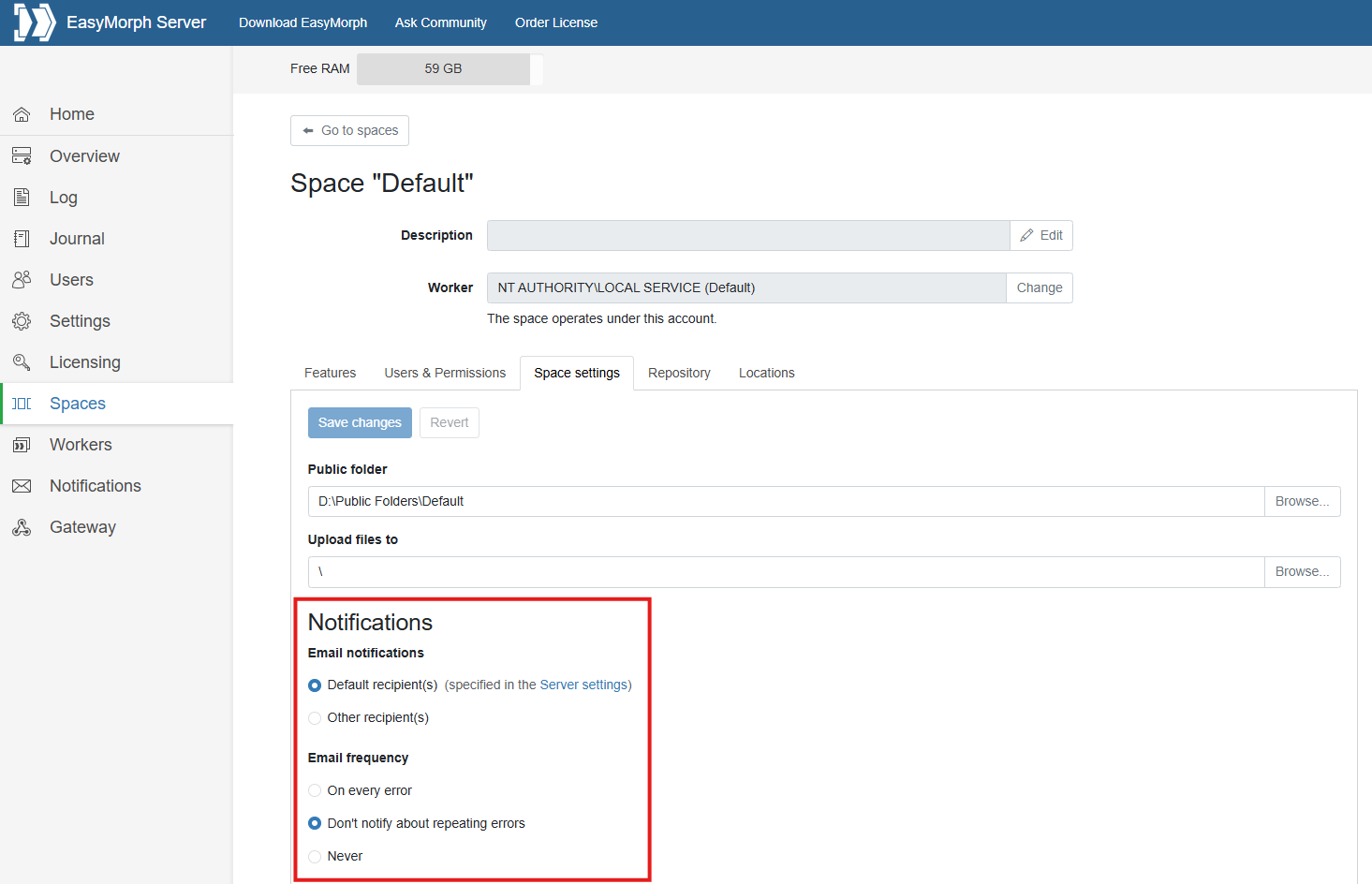
Firstly, as briefly mentioned above, if your workflow is running as a task in EasyMorph Server, you should configure it to send you an email should a task fail for any reason. We can then investigate and re-run the task once the problem has been resolved.
EasyMorph also has a number of “communication” actions which can be added to any workflow to send an email, a Slack or Teams message or even a push notification.
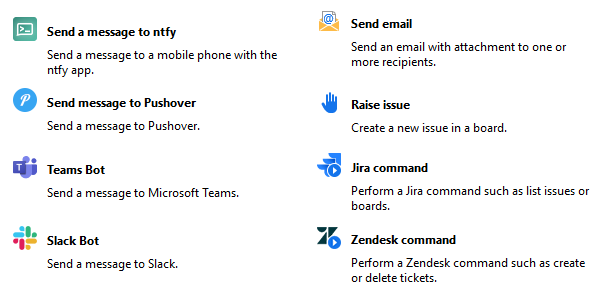
Another possibility is to raise an issue on an EasyMorph Explorer Board (or other ticketing system such as Zendesk or Jira) using the Raise issue action. We can even attach the problem data to the issue and assign it to the relevant person, ready for them to investigate and resolve. We can even link a task, allowing them to reprocess the offending data once the issue is resolved.
Summary
The examples mentioned above are just a handful of the potential use cases where an EasyMorph workflow can save us time and money or improve productivity by automating a repetitive task. We’d love to hear how you are using EasyMorph to automate your work.