Moving SharePoint Online connectors from legacy authentication to interactive Microsoft Entra authorization
Why this is necessary
Microsoft is retiring legacy SharePoint authentication based on IDCRL. As of April 14, 2026, Microsoft's published timeline says that legacy IDCRL sign-ins were blocked by default in mid-February 2026, can only be temporarily re-enabled through April 30, 2026, and are fully retired on May 1, 2026.
If your SharePoint connector used the old Basic / legacy sign-in path and stopped working around the end of March or beginning of April 2026, that matches the Microsoft retirement timeline and is the expected failure pattern.
How EasyMorph, Microsoft Entra, and SharePoint fit together
There are three moving parts in this setup.
SharePoint Online is the resource you want to access - it stores the files, folders, and lists workflows use. Microsoft Entra ID is the identity platform that signs users in and issues tokens to applications, such as EasyMorph. EasyMorph, in turn, requests a token from Entra and then uses that token to call SharePoint on behalf of the signed-in user.
In delegated OAuth, EasyMorph does not get unlimited tenant-wide access just because it exists. It gets a token containing the delegated permissions that were granted to the app, and even then it can only access what the signed-in user could personally access in SharePoint. In practice, the effective access is the intersection of:
- the permissions granted to the Entra app, and
- the permissions the signed-in user actually has in SharePoint.
In EasyMorph's SharePoint connector, and in Entra-based connectors generally, the interactive flow signs the user in once, stores the obtained authorization state, and later uses silent token acquisition to renew access without asking the user to sign in every time.
An important practical limitation is that silent refresh works only for shared connectors. Embedded connectors are not suitable for a "set it once and let it silently renew indefinitely" model.
Does the authorization expire?
Yes. Modern authentication authorization is not permanent. The refresh token lifetime obtained during sign-in is typically up to 90 days by default. However, when the connector is used regularly (i.e. at least once before 90 days expire) and it is a shared connector rather than an embedded one, the token chain is normally renewed silently, practically indefinitely.
Important caveats:
- Microsoft Entra or tenant security policy can still invalidate the authorization earlier.
- If the refresh chain is broken, the connector must be authorized again interactively.
What permissions does EasyMorph request?
EasyMorph SharePoint requires the following delegated SharePoint permissions:
AllSites.ReadAllSites.WriteAllSites.FullControlMyFiles.ReadMyFiles.Write
What to configure
If you already have a SharePoint Online connector and just need to move it off legacy authentication, the best-case workflow is:
- Open the SharePoint connector in EasyMorph.
- Switch the authorization type from the legacy/basic method to the interactive Microsoft Entra method.
- Click Authorize.
- Sign in with the Microsoft 365 account that should own the connector's SharePoint access.
- Complete any consent prompts.
- Test the connector.
If the tenant, app permissions, redirect URI, and related settings are already configured correctly, the connector should resume working without requiring workflow changes.
If authorization fails
If authorization fails, something in your Entra app configuration does not match what EasyMorph needs.
1. Your Entra app must be a public desktop client
Configure the app as follows:
- Authentication -> Add a platform -> Mobile and desktop applications
- Redirect URI:
https://login.microsoftonline.com/common/oauth2/nativeclient - Allow public client flows = Yes (Configure desktop apps that call web APIs - Microsoft identity platform | Microsoft Learn)
If this redirect URI is missing, or the app is not configured as a public client, interactive authorization can fail even if the permissions appear correct.
2. Your app must request SharePoint delegated permissions
In Entra:
- Go to App registrations.
- Open the app you want EasyMorph to use.
- Open API permissions.
- Click Add a permission.
- Add the SharePoint API permissions required by EasyMorph.
- Choose Delegated permissions.
- Add the delegated scopes that match the connector request.
For EasyMorph SharePoint, configure this permission set:
AllSites.ReadAllSites.WriteAllSites.FullControlMyFiles.ReadMyFiles.Write
3. A tenant administrator may need to grant admin consent
Microsoft's Entra documentation says tenant-wide admin consent can be granted either from Enterprise applications or from App registrations, and that the admin must have a role such as:
- Privileged Role Administrator
- Cloud Application Administrator
- Application Administrator
Reference: https://learn.microsoft.com/en-us/entra/identity/enterprise-apps/grant-admin-consent
In practice:
- If you are using your own custom app registration - which is often the most reliable route - the cleanest path is usually: App registrations -> your app -> API permissions -> Grant admin consent
- If you are using the default EasyMorph app, the enterprise application usually has to exist in your tenant first. In practice, that often means at least one user must already attempt the sign-in / consent flow before the app appears there. There is no way to pre-add those permissions entirely in advance from the Enterprise applications side alone.
Create an Entra app from scratch
Use the steps below if you want to set up a custom Entra app for EasyMorph SharePoint from scratch. If the default EasyMorph Entra application does not work cleanly in your tenant, creating a custom Entra app is often the quickest and most reliable way forward.
Once the app is configured as a public desktop client, the redirect URI is correct, the required SharePoint delegated permissions are added, and admin consent is granted, the EasyMorph SharePoint connector should work normally.
- Open Microsoft Entra admin center (Microsoft Azure)
- Go to App registrations.
- Click New registration.
- Enter app name, pick your account type, in 'Redirect URI' choose 'Public client/native (mobile)' and redirect URI
https://login.microsoftonline.com/common/oauth2/nativeclient
- Click 'Register'
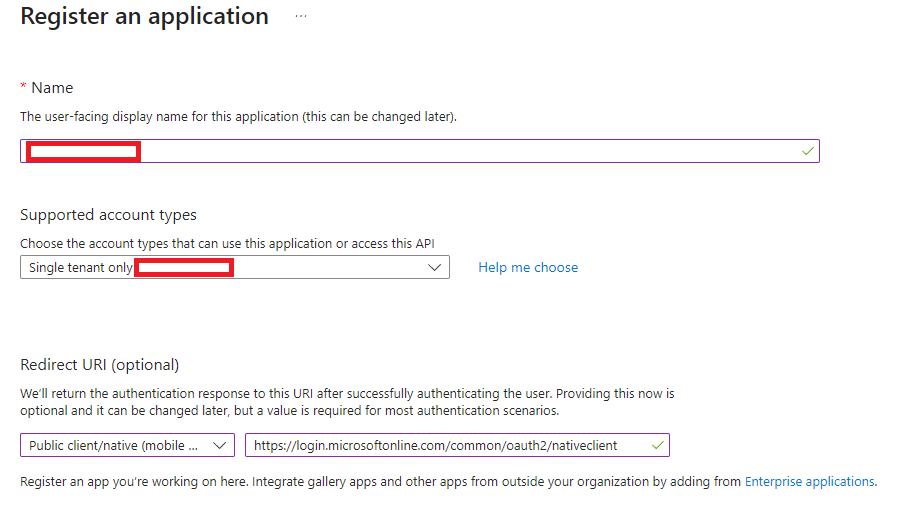
Note for later:
- Application (client) ID
- Directory (tenant) ID (Configure desktop apps that call web APIs - Microsoft identity platform | Microsoft Learn)
If you did not set this during creation: configure authentication
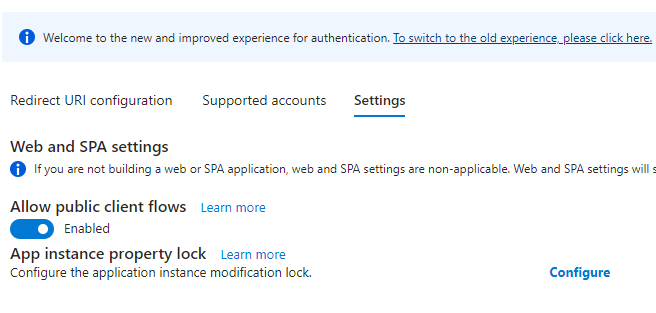
- Open Manage -> Authentication (Preview)
- Click Add redirect URI.
- In the list on the right, choose Mobile and desktop applications.
- Pick or enter the redirect URI
https://login.microsoftonline.com/common/oauth2/nativeclient - Press 'Configure'.
- Under Settings tab, set Allow public client flows to Yes.
- Save.
Configure API permissions
- Open API permissions.
- Click Add a permission.
- Pick SharePoint -> pick Delegated permissions.
- Add:
AllSites.ReadAllSites.WriteAllSites.FullControlMyFiles.ReadMyFiles.Write
- Click Add permissions.
- Click Grant admin consent for (your tenant).
Configure the EasyMorph connector
- In EasyMorph, create or open the SharePoint connector.
- Go to the connector Options tab.
- Enter the custom Application (client) ID.
- Enter the Directory (tenant) ID explicitly.
- Switch the authorization type to the interactive Entra flow.
- Click Authorize.
- Sign in with the SharePoint user account that should own the connection.
- Click Test.