If you renewed or updated your license key for Desktop, you need to replace the old key with the new one. Here is how you can do it:
Step 1 - Understand where the current key is stored
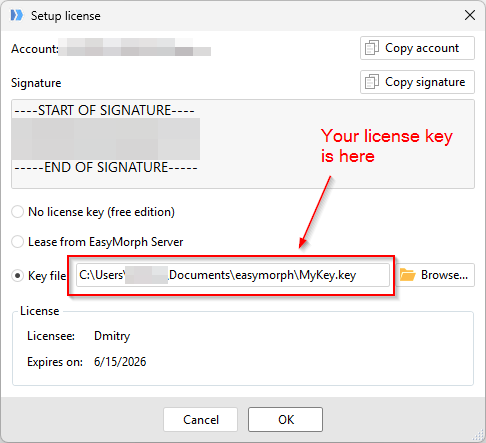
Open EasyMorph Desktop, go to the Start screen, and click "Setup license key" in the blue sidebar (on the right). See the screenshot below

In the dialog, see the location of your license key.
Step 2- Replace the old key with the new one
If your new/updated license key has exactly the same name, you can simply copy the old key over the new key, and restart EasyMorph Desktop.
If your new/updated license key has a different name, then do the following:
- Copy the new key in the same folder next to the current key
- Drag the new key into the application, or press the "Browse" button in the screenshot above to select the new key file.
- Press "OK" to close the "Setup license" dialog. No application restart is required.
A simpler option
- Save the new key file on your Windows desktop
- Open EasyMorph Desktop
- Drag the new key into the application