For now, EasyMorph Hub listens on a single port and speaks either HTTP or HTTPS. So when you need to switch it to HTTPS, every existing link that starts with http:// pointing to the Hub stops working (such as task reload links, API endpoints, auto-generated documentation, bookmarked Hub pages, etc.).
If you have many links like that in use, it can be challenging to change all of them without stopping things from working for some time.
As a workaround, you can put Nginx (a reverse proxy) in front of the Hub as a temporary compatibility measure: it keeps answering plain HTTP on the old port and forwards those requests to the Hub over HTTPS. Existing integrations keep working unchanged while you migrate them.
This guide sets that up on Windows, on the same machine as the Hub.
Before you start
- The Hub (v 6+) should be already switched to HTTPS on port 443 (for exapmle via Server Monitor), with a certificate that covers your domain name. If you're concerned about downtime, you can finish
nginxsetup (below) before switching Hub to HTTPS, but the switch itself would require some downtime nevertheless. - The domain you use has no forced HTTP => HTTPS redirect - meaning no HSTS rule from a CDN. Such a rule would rewrite
http://tohttps://even before the request ever gets to Nginx, which defeats the whole arrangement. - You have administrator rights on the server.
Replace your-domain.com with your own domain, and 6330 with port your integrations currently use.
1. Install Nginx
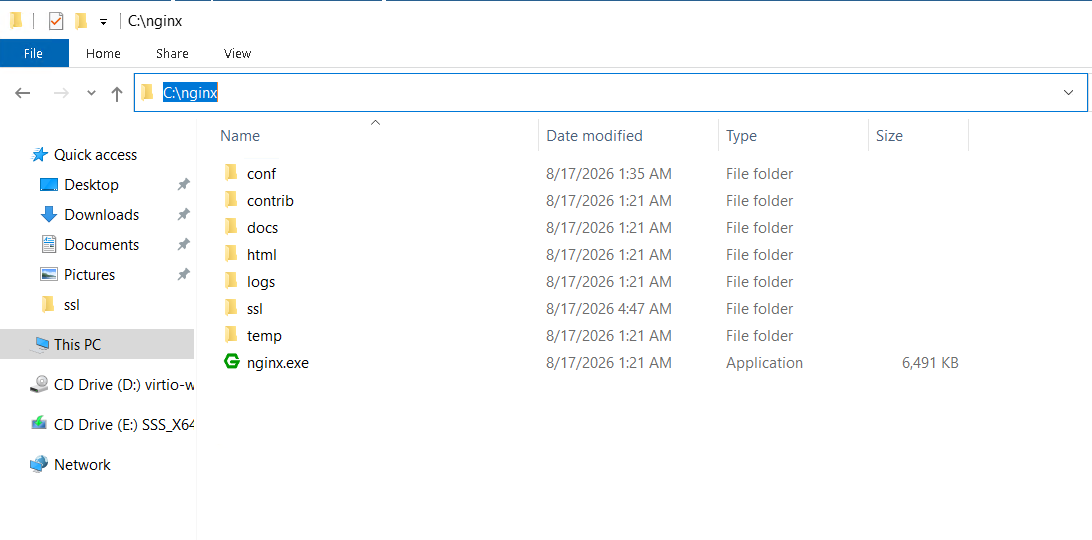
Download the latest stable Windows build from https://nginx.org/en/download.html and unzip it into
C:\nginx\.
2. Configure Nginx
Replace the contents of C:\nginx\conf\nginx.conf with the following:
worker_processes  auto;

events {
    worker_connections  1024;
}

http {
    include       mime.types;
    default_type  application/octet-stream;
    sendfile        on;
    keepalive_timeout  65;

    map $http_upgrade $connection_upgrade {
        default upgrade;
        ''      close;
    }

    server {
        listen 6330;
        server_name your-domain.com;

        location ~ ^/(space/[^/]+/tasks/start/|api/|web-api/|odata/|hubs/) {
            proxy_pass https://127.0.0.1;

            proxy_ssl_verify      off;
            proxy_ssl_server_name on;
            proxy_ssl_name        $host;

            proxy_set_header Host              $host;
            proxy_set_header X-Real-IP         $remote_addr;
            proxy_set_header X-Forwarded-For   $proxy_add_x_forwarded_for;
            proxy_set_header X-Forwarded-Proto $scheme;

            proxy_http_version 1.1;
            proxy_set_header Upgrade    $http_upgrade;
            proxy_set_header Connection $connection_upgrade;

            proxy_read_timeout 3600s;
            proxy_send_timeout 3600s;
        }

        location / {
            return 301 https://$host$request_uri;
        }
    }
}
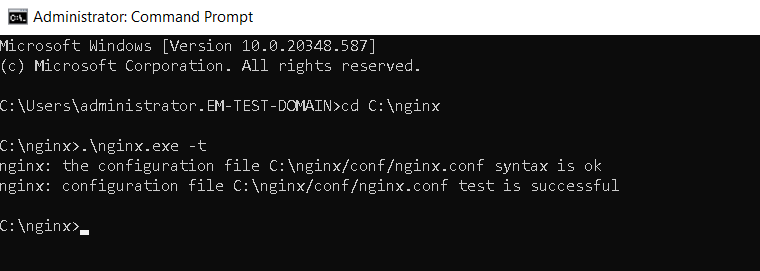
3. Validate the configuration
Open a command prompt in the Nginx folder and run the syntax check:
cd C:\nginx
.\nginx.exe -t
4. Open port 6330 in Windows Firewall
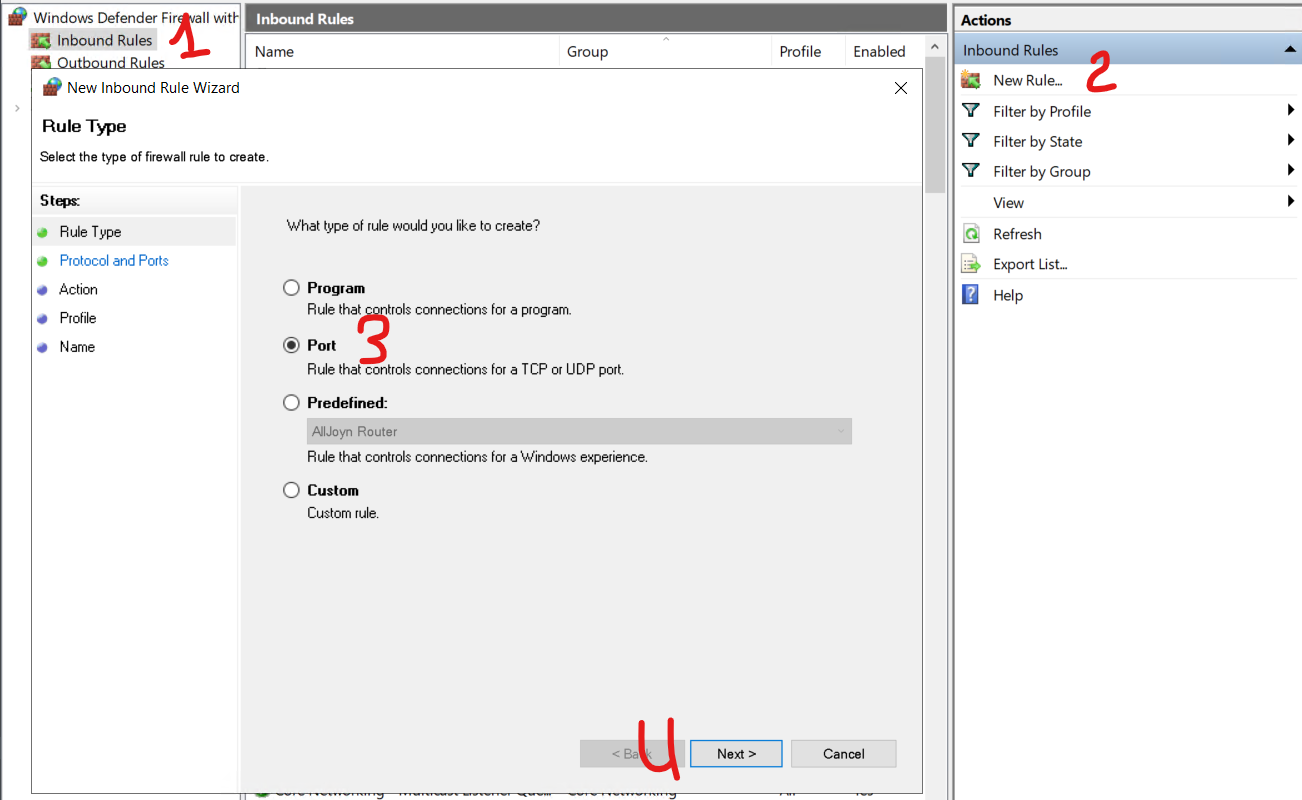
Go to Control Panel → All Control Panel Items → Administrative Tools → Windows Defender Firewall
with Advanced Security, then Inbound Rules → New Rule → Port → Next.
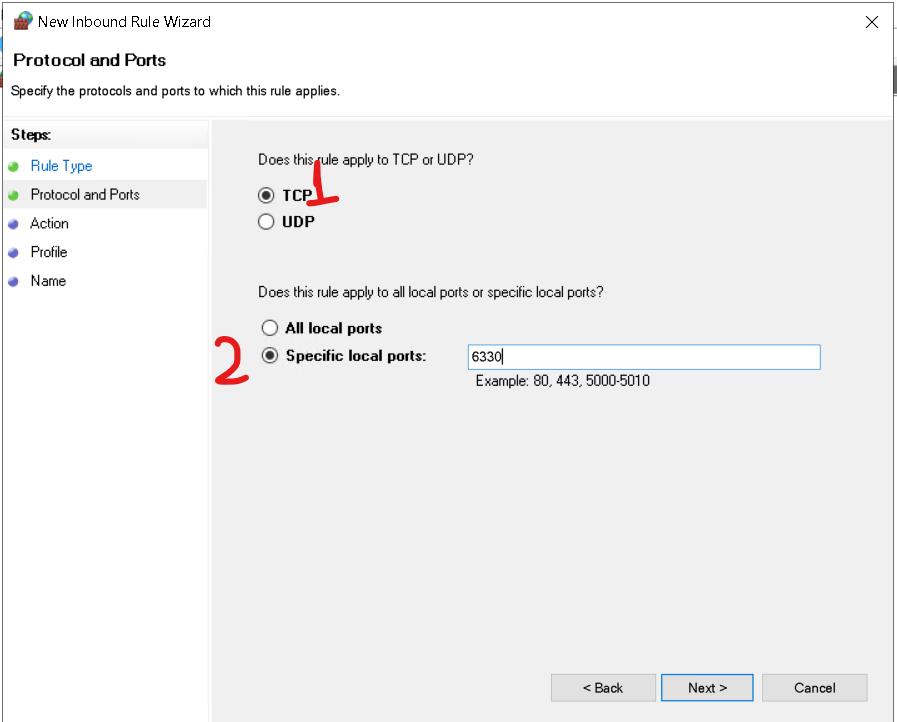
Select TCP, and under Specific local ports enter 6330 → Next.
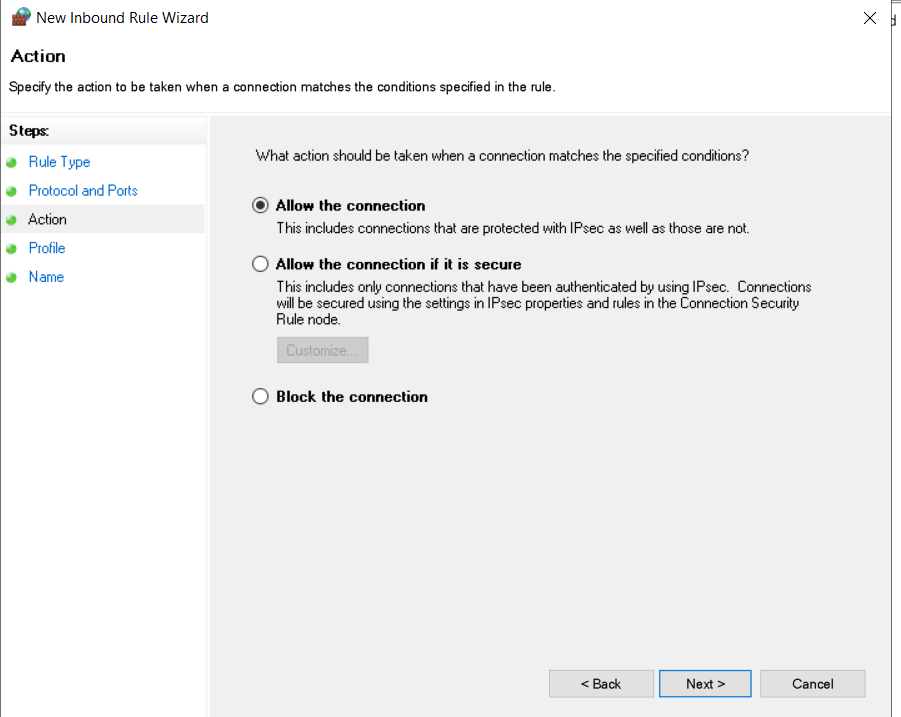
Select Allow the connection → Next.
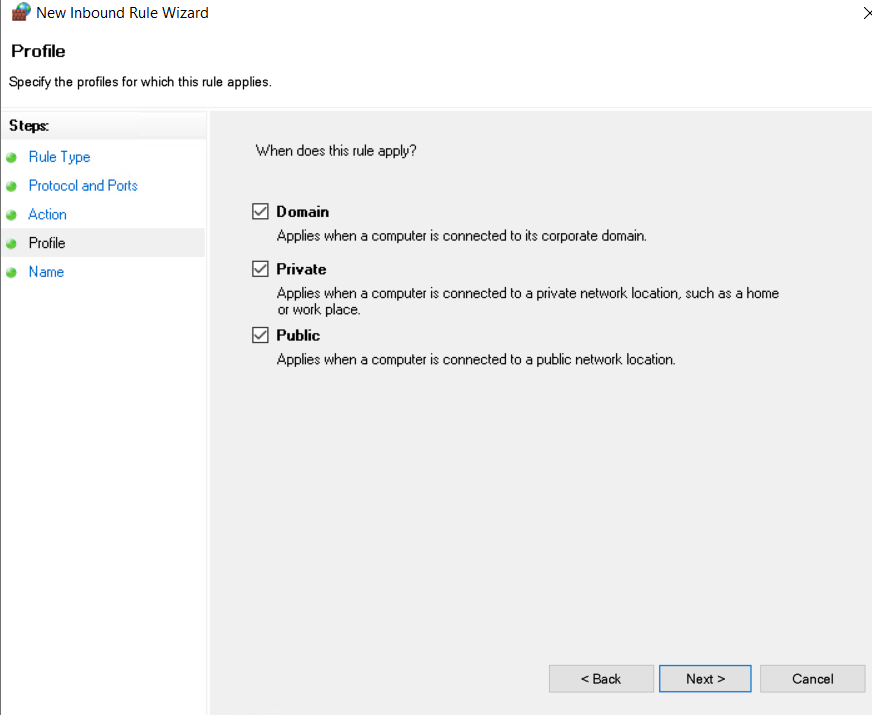
Select all network profiles (Domain, Private, Public) → Next.
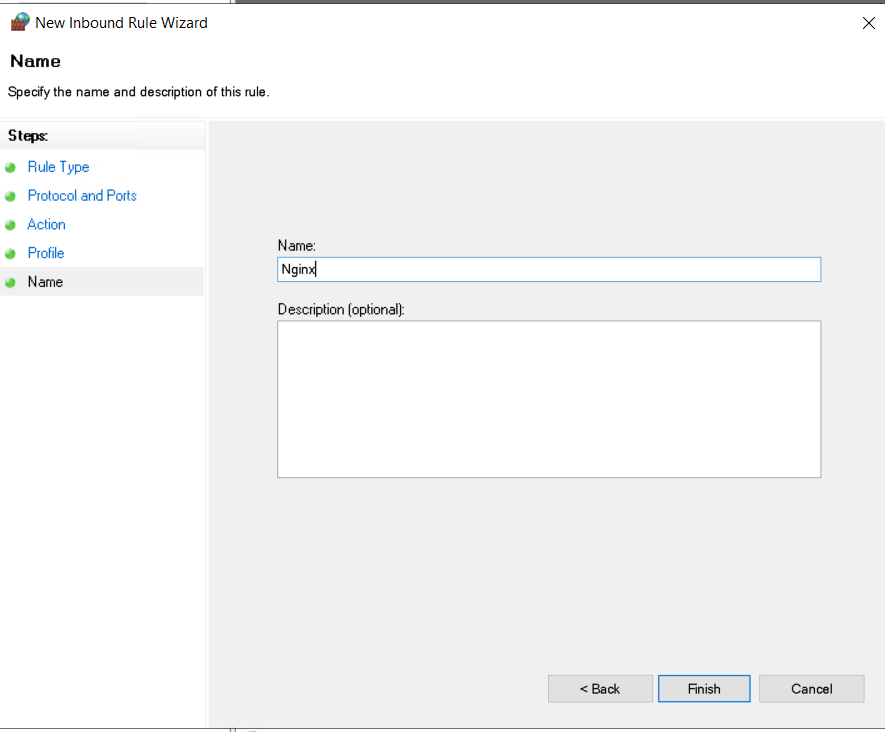
Give the rule a name (for example, Nginx) and click Finish.
5. Run Nginx as a Windows service
Nginx has no built-in service mode on Windows, so use NSSM.
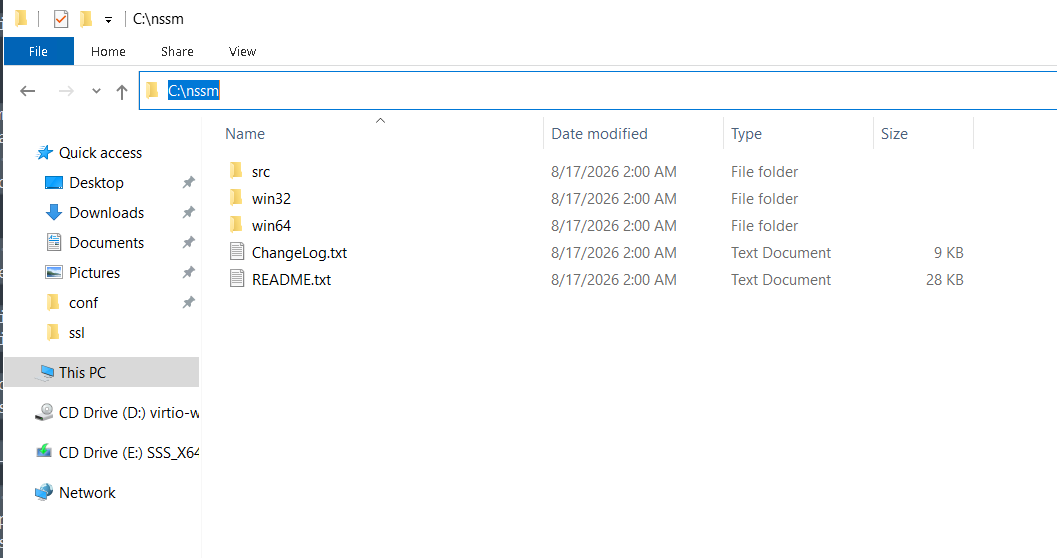
Download it from
https://nssm.cc/release/nssm-2.24.zip and unzip into C:\nssm\.
Then, from a command prompt:
cd C:\nssm\win64
nssm install nginx "C:\nginx\nginx.exe"
nssm set nginx AppDirectory "C:\nginx"
nssm start nginx
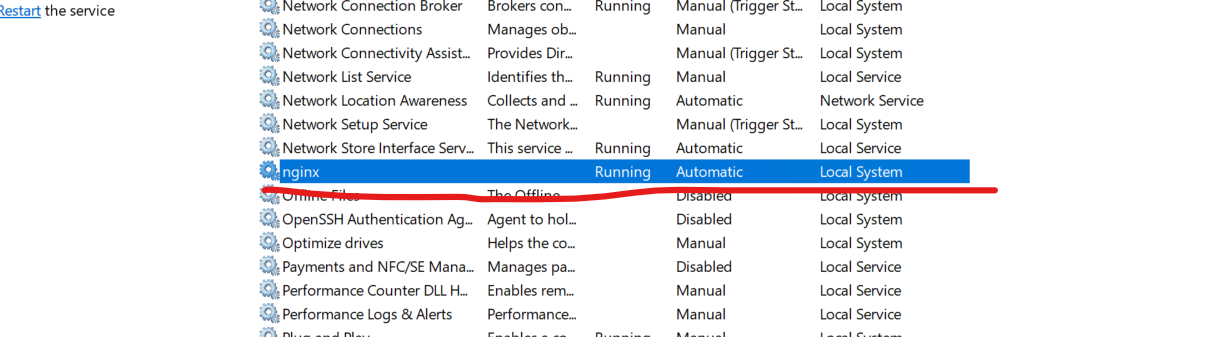
The nginx service should now show as Running in Windows Services (services.msc).
6. Verify
Open both of these in a browser:
The first opens the Hub. The second should redirect you to the first.
Then from any machine that can reach the server:
curl -i http://your-domain.com:6330/api/v1/server/status
curl -i -X POST "http://your-domain.com:6330/hubs/notifications/negotiate?negotiateVersion=1"
Both should return a real answer from the Hub - a 200.
If either returns a 301, the path is being redirected instead of forwarded and needs to be added to the location pattern.
Treat this as temporary.
The point of the arrangement is to over time transition all API callers, EasyMorph Hub links in Desktops, and EasyMorph Hub connectors to https://
Once the last one transitions, stop the nginx service, remove the firewall rule, and you are on plain end-to-end HTTPS.