How to create %Like% utilizing parameter list in visual SQL editor

Good afternoon Easymorphers,

Does anyone have experience with the below?

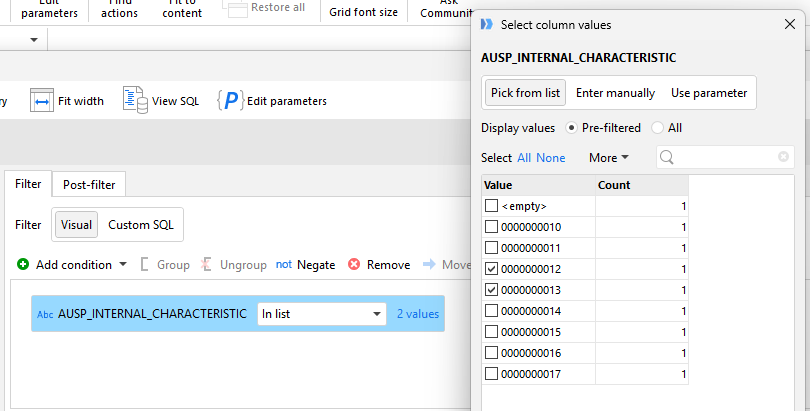
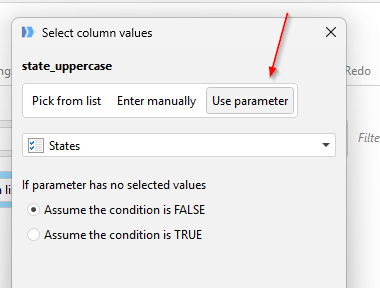
How would I go about tweaking the visual SQL editor to create a LIKE operator for a list of elements? For example, the characteristic numbers in the below query could be missing leading zeros. I would like to have a parameter where I have a list of values e.g 12, 13. And then that list gets inserted for the like comparison. I tried creating a parameter list but the match only ended up occurring for the first value in the list and ignored later entries.

SELECT
"MCHB_MATERIAL_NUMBER",
"MCHB_PLANT",
"MCHB_STORAGE_LOCATION",
"MCHB_BATCH_NUMBER",
"AUSP_INTERNAL_CHARACTERISTIC",
"AUSP_CHARACTERISTIC_VALUE"
FROM "LOCATION"."MY_TABLE"
WHERE "AUSP_INTERNAL_CHARACTERISTIC" IN ('0000000012', '0000000013')

Best wishes-

Hello Perk!

A couple of questions:

  • Is the list of values going to change often, or is it a mostly fixed list you want to select some values from and then run the workflow with the query?
  • When you say you were using the "parameter list", you are referring to the "Fixed list" parameter type in EasyMorph correct?
  • Are the specific numbers that you want to find always at the end of the value, such as '12' in '0000000012', or could it be also in the beginning / middle?

Regards

Hi Roberto,

Thank you kindly for the swift repy!

In this instance, the list is not going to change often and is generally fixed. Though, if there a method for handling more dynamic lists, I would be interested in hearing that solution as well, as I may have a different use case for more dynamic queries.

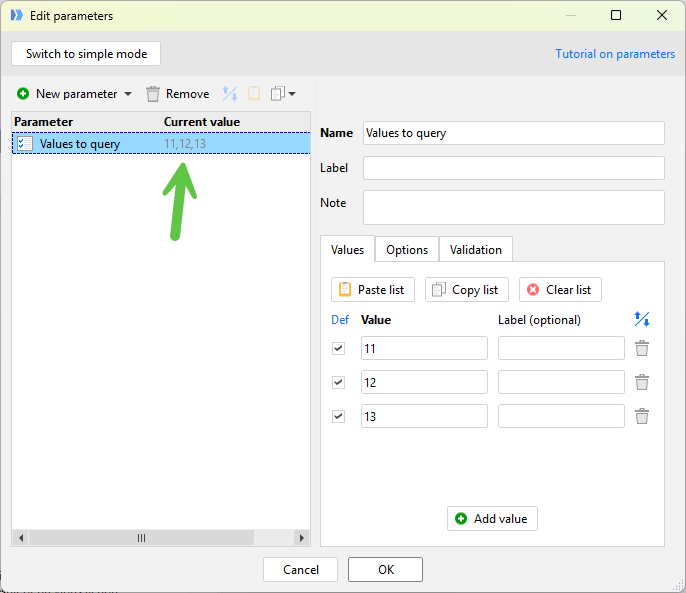
Yes, I used the Fixed List parameter. I also tried using the Multiple Choice parameter as well but it didn't seem to work either. When I attempted the Fixed List parameter, I believe I got results back for only the first selection on the list though.

In this case the values are always at the end. I realize that the LIKE operator could be like %12, %12%, 12%. If there is a trick for specifying I would be interested to know so I can employ it on other use cases down the road.

Thank you kindly for the response! I look forward to any ideas you may have.

Best wishes-

My apologies for the follow up. I don't know if this additional context helps. But in the query I have in the original post, a simple select in list from the visual query editor works. However, I am trying to duplicate some logic that the developer of a view created and they have specific comments that sometimes these values may have character length differences, and they have a block of code to pad zeros up to the length in that situation. If I happen to run into a similar situation where there is a missing padded zero or two from the front, then the select in list with this original query will no longer work.

Thanks for the additional details! One last question which could change the possible solution - what type of database are you querying?

Hi Roberto,

This query is for Snowflake sql dialect.

Thank you sir!

Hello Perk,

Great, if you have Snowflake you can use the "LIKE ANY" operator in the SQL statement, which simplifies things.

Are you familiar with parameters and calling modules/projects? These concepts appear in the following solutions.

Solution A: Values you want to query are always found at the end of the string

Values always at the end.morph (11.1 KB)

In this project we have two modules: "Main" and "Run Query".

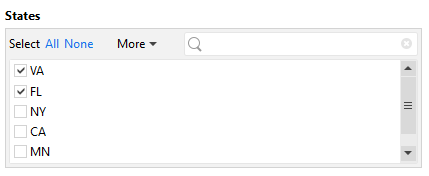
  • In "Main" we have the Multiple choice parameter "Values to query", from where we can choose the values.

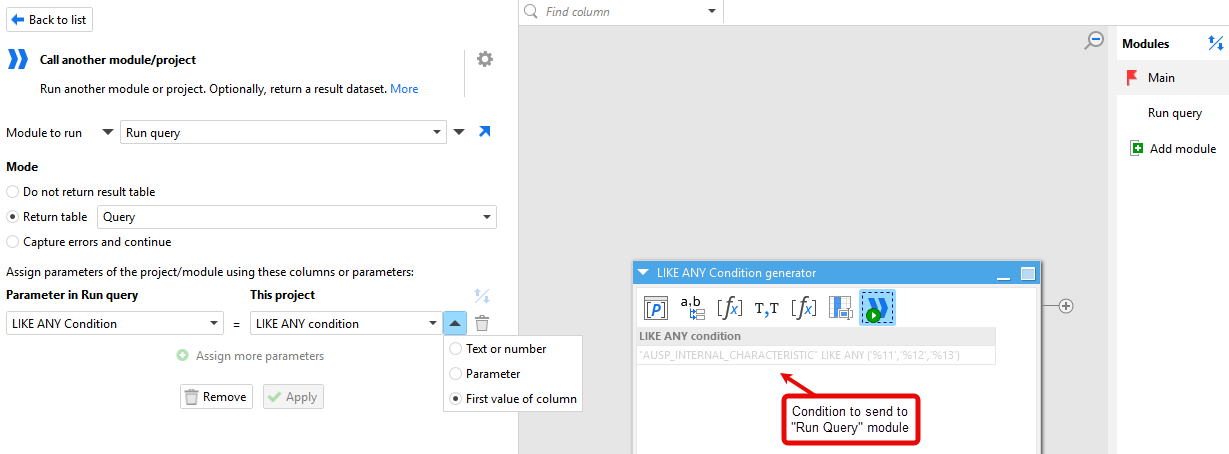
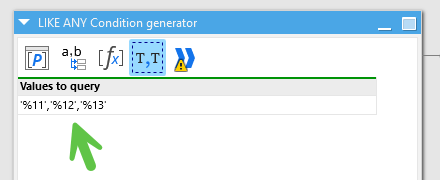
    In this module we are building the query condition which we will pass to the "Run Query" module as a parameter. The first step is to list the value of the parameter "Value to query" in the workflow and modify it until we have the condition we need (you will see that we're always adding the "%" in the same position). The last step is to run the "Run Query" module, passing the first value of the column "LIKE ANY condition" to the parameter "LIKE ANY condition" in the "Run Query" module:

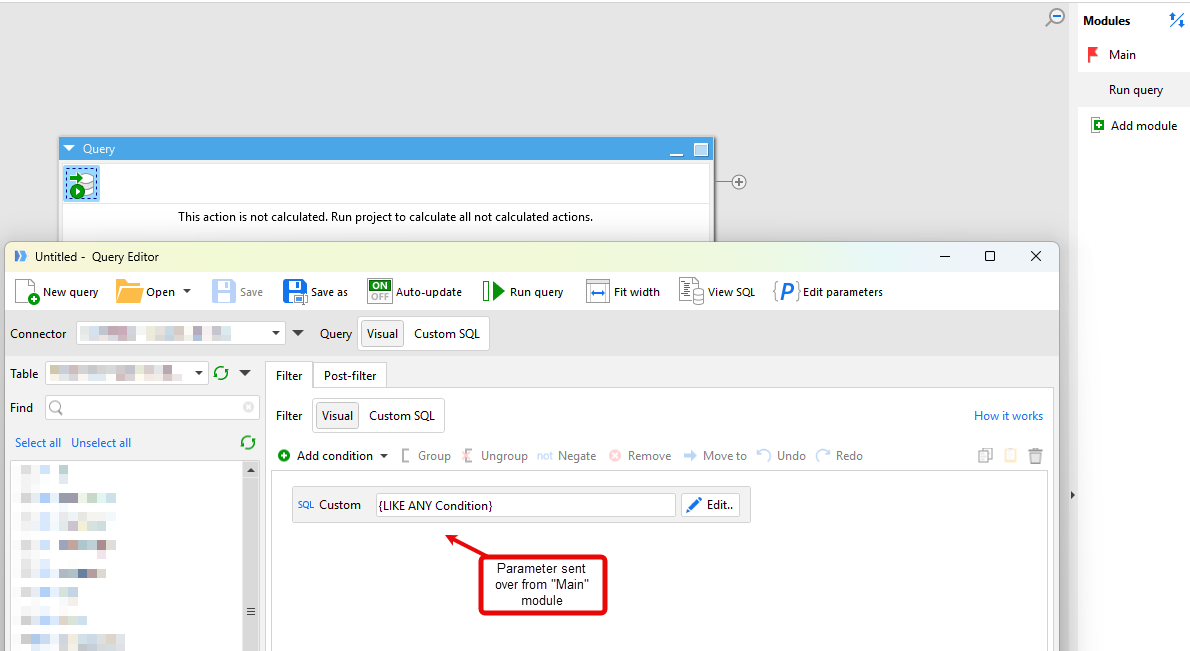
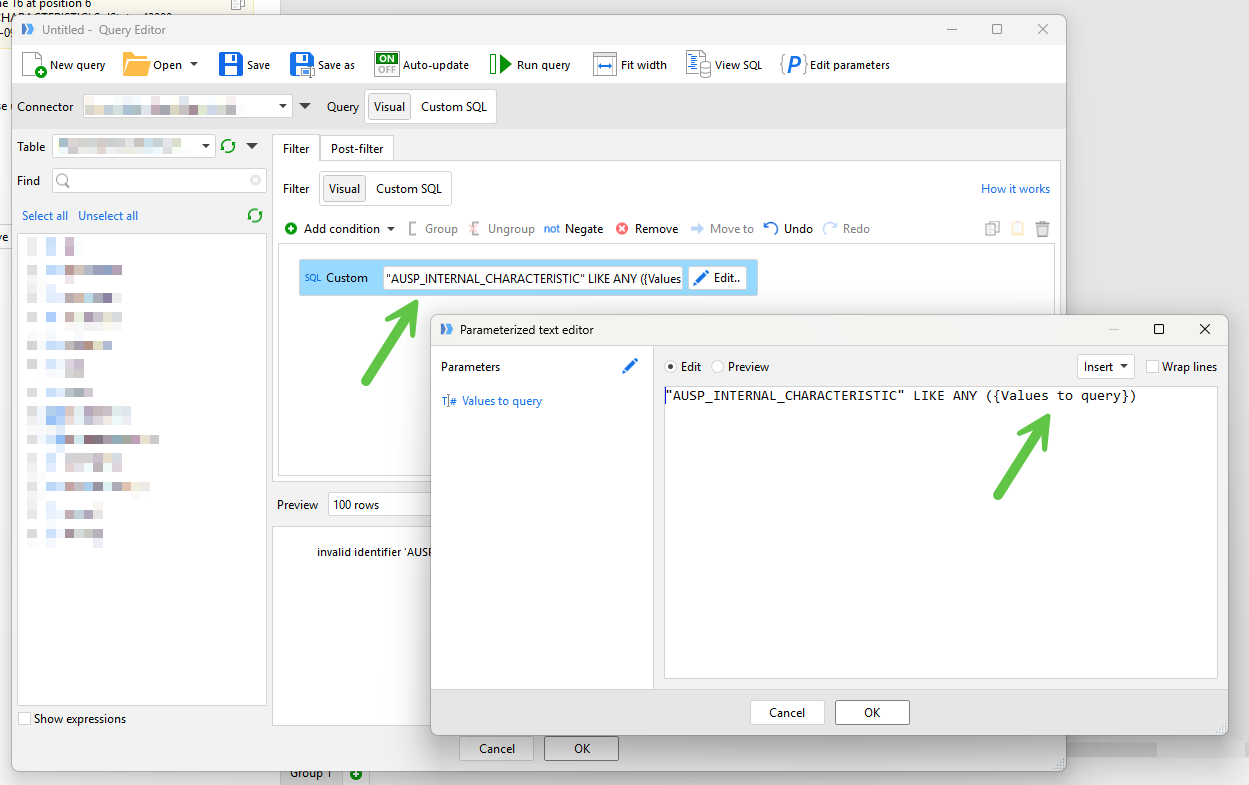
  • The "Run query" module has a single action, "Import from database", and in the query editor, there is a Custom SQL condition added, and its value is the parameter that is being sent from the "Main" module. This custom SQL condition can be combined with other conditions that you may have in the visual editor. You will have to choose your Snowflake connector here and the relevant table. This queries the database with the LIKE ANY and brings back the result to the "Main" module.

Solution B: The placement of the values varies (dynamic)

Placement varies (dynamic).zip (9.5 KB)

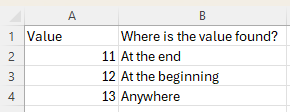
In this case, we have a helper Excel file, where you have the values to find, and in which position they are found ("At the end", "At the beginning", "Anywhere"):

The morph project structure is the same, with two modules: "Main" and "Run Query". The difference is that in this case, instead of having a multiple choice parameter in "Main", we are opening the Excel file and then building the condition, which we then pass to the "Run Query" module.

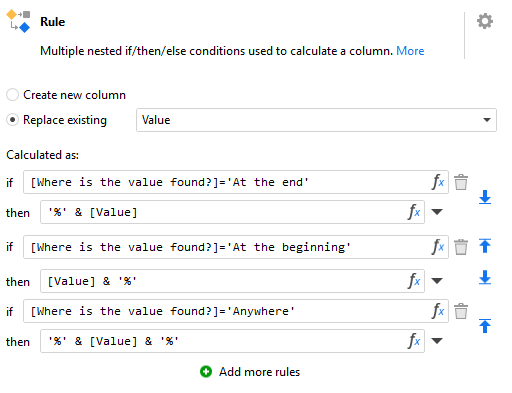
In this case we use the Rule action to add the "%" in the right position:

And then we continue building the condition until it's ready to be sent to the "Run Query" module. In this case, the query has the "%" added at different positions, depending on what we have specified in the Excel file. For example:

"AUSP_INTERNAL_CHARACTERISTIC" LIKE ANY ('%11','12%','%13%')

Let me know if you have any questions or if something is not working.