In version 5.9.6 of EasyMorph we added the expression generator. Simply enter a description of what you want an expression to do and EasyMorph’s cloud based AI will attempt to write the expression for you. If you want to know more and see it in action, check out the release blog post and video.
EasyMorph’s philosophy is that our software should be “no-code” wherever possible, so that it is accessible to the widest range of users. So why not just replace expressions with a no-code visual alternative? Sometimes, the power and flexibility of script and code just can’t be matched, and so removing it would limit what advanced users can do. That’s why we’ve kept expressions as code and added the AI assistant to help those less technical or new to EasyMorph to write expressions which meet their needs. We believe EasyMorph has the right balance of complexity by being a visual design tool with local infusions of lightweight formulas here and there.
So if code-based expressions are so powerful, I thought it would be good to cover some of the more advanced features of EasyMorph expressions. Even if you’re an EasyMorph pro, maybe you’ll find something you didn’t know was possible.
Comments on Comments
Comments in EasyMorph expressions are valuable for a few reasons. Firstly, to annotate your logic so that when you come back to it at a later date, you can remember why you wrote what you did. Comments are also valuable when debugging expressions, commenting out parts of the code to help understand what the uncommented parts do and if they are working as expected.
Comments can be added to EasyMorph expressions using double forward slashes “//”. Anything immediately after up to the end of the line is then considered a comment. They can be placed anywhere in a line and so the following will consider the entire first line to be a comment:
// left([ref],4) &
right([ref], 2)
Whereas the below will consider only the text describing the code will be considered a comment and the code prior to it will still be executed.
left([ref], 4) // Get the left 4 characters from the ref field
Comments always end at the end of the line they are placed on and so if you want to comment out larger blocks of code within an expression, you need to add comment slashes to all relevant lines.
// IF [type] = 1 THEN
//	left([ref], 4)
// ELSE
	left([customer ref], 4)
In the above, only the last line containing “customer ref” will be executed.
If Only There Was More Than One “If”
Most people familiar with EasyMorph expressions (or Excel for that matter) will have used the if() function to add conditional if…then…else logic.
if([type] = 1, [our ref], [customer ref])
The if() function is great, but when trying to wrap them around larger blocks of code or when nesting them inside each other to create “else if” logic, things can get a little messy and harder to understand.
if([type] = 1, [our ref], if([type] = 2, [customer ref], “No ref”))
There is also one important thing to know about the if() function. Both the “if true” and “if false” conditions are calculated every time, even though only one is returned. This is obviously less efficient, especially when the expression is applied to huge volumes of data or when the calculations being performed are extremely complex.
Thankfully, there is also an IF operator, and so we can write the above logic as:
IF [type]=1 THEN [our ref] ELSE [customer ref]
The IF operator only calculates the “if true” OR “if false” condition and so can be much more efficient.
“Else if” logic can also be handled as follows:
IF [type]=1 THEN
	[our ref]
ELSE IF [type]=2 THEN
	[customer ref]
ELSE
	“No ref”
Which, at least in my opinion, is much easier to understand at a glance. And being essentially written in plain language, if I need to share the logic with non-technical people in my organisation, they should be able to understand it better also.
Who cares about whitespace
Whitespace is generally ignored when EasyMorph evaluates expressions. As a simple example, all of the below are valid and will be calculated in the same way and result in the same answer:
[value]*10
[value]
*
10
[value]
*
10
This means you can add whitespace characters (spaces, tabs or carriage returns) to lay out your expressions so that they are easier to read quickly and understand. I especially like to separate long expressions into logical groups on separate lines. And to also indent lines of code to help quickly indicate where they are nested inside. For example:
IF
    (
        [type] = 1 AND
        [category] != “Metal”
    )
    OR
    (
        [type] = 2 AND
        [category] = “Plastic”
    )
THEN
    [value] / 100
ELSE
    [value] * 100
This is much easier to quickly scan, seeing where parts of the if logic are grouped than if it is written on a single long line:
IF ([type]=1 AND [category]!=“Metal”) OR ([type]=2 AND [category]=“Plastic”) THEN [value]/100 ELSE [value]*100
Hopefully, it goes without saying, but whitespace isn’t entirely ignored by EasyMorph. For example:
IF NOT [value]>0 THEN...
Is a valid expression because the IF and NOT operators are separated by a space. Where as:
IFNOT [value]>0 THEN...
Would not be valid as there is no “IFNOT” operator.
“LET” Constants be Constants
Sometimes, expressions in EasyMorph can end up being incredibly long and complex. Again, EasyMorph by design doesn’t encourage complex expressions, but sometimes the alternatives are even less appealing. In complex expressions, it's common for the same logic to be repeated in different parts of the expressions. For example, the same calculation appears twice in the below:
IF [category] = 1 THEN
	1 - ( [value] * [exchange rate] * [margin] )
ELSE
	(100 - ( [value] * [exchange rate] * [margin] )) * 17.5
This example is relatively simple and I’ve both seen and created far more complex expressions with much more repetition.
As well as making my expression longer, it also means that if I want to change the repeated logic, I have to change it in many places, opening up the possibility of me missing some. And most importantly, EasyMorph has to perform the calculation multiple times, which is less efficient.
To solve this problem, EasyMorph expressions allow us to define “constants” using the LET operator. These constants are calculated once and we can then reference them as many times as needed in the rest of our expression. So the above example can be re-written as:
LET x = [value] * [exchange rate] * [margin]
IF [category] = 1 THEN
	1 - x
ELSE
	(100 - x) * 17.5
We can define multiple constants as shown below and they can be named just about anything we like. We can also use one constant in the definition of following constant:
LET ExchangeRate = if([currency]=”USD”, 1.1497, 2.0074)
LET ConvertedValue = [value] * ExchangeRate * [margin]
...
You ASSUME what?
One of the more unique pieces of functionality within EasyMorph expressions is the ASSUME operator. Because it is somewhat unique and because it also has multiple variations, it can be a little tricky to understand at first. But I’ll do my best to break it down and explain.
The ASSUME operator allows us to define conditions at the start of our expression, and only if these conditions are true, the rest of the expression is then calculated. The simplest example would be:
ASSUME [rate] != 0
[value] / [rate]
Without ASSUME, if the rate was zero then our expression would error because we can’t divide by zero. ASSUME is therefore used to check for this potential problem first, and then only if it is not true, the second line of our expression is calculated.
When I first saw ASSUME in action in an expression, my first thought was to question why it would even be needed. Surely, we can do the same checks with IF…THEN instead? Well, it isn’t quite that simple.
IF conditional statements or if() functions are evaluated immediately. In contrast, the ASSUME operator condition is first checked, and only if it is true will the expression be calculated. Let’s work through an example to see this difference in action.
If our table starts off looking like this:
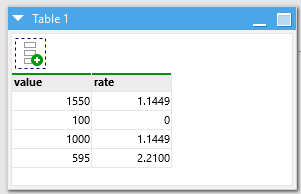
And we added an IF operator condition to calculate a third column as follows:
IF [rate] != 0 THEN
	[value] / [rate]
We would get the following result:
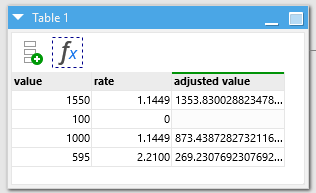
We can see it skipped performing the calculation for the second row and no error was thrown. Now this might be exactly what we want, but it also may not be valid to have a rate of zero and so we’d like to trigger an error if any rates are zero.
Setting our expression to use an ASSUME operator condition instead:
ASSUME [rate] != 0
[value] / [rate]
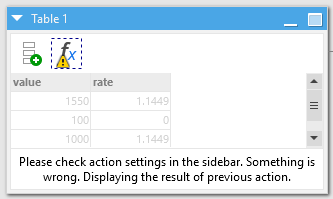
Results in EasyMorph declaring an error, telling us the assume condition wasn’t met for all rows:
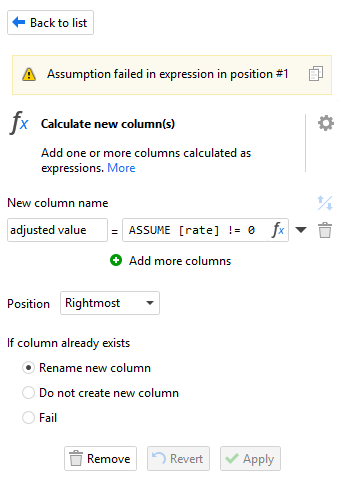
And if we do indeed check the action settings, we see an error telling us the assumption isn’t met:
Because it causes these errors to be triggered, ASSUME can be one tool to identify where data quality problems may exist, stopping the erroneous data from being simply skipped and ending up downstream in reports and dashboards. You can think of it as an in-place analogue of the “Halt on condition” action, another frequently used mechanism to control data quality.
So now that we have established the difference between IF conditions and ASSUME conditions, let’s look at some of the different variations for how it can be used.
Rather than the error displayed just telling us the condition wasn’t met, we can instead provide a customer error message as follows:
ASSUME isnumber([rate]) OTHERWISE FAIL “The rate is not a numeric value”
One minor point that caught me out when I was first looking at examples of expressions using ASSUME was that the OTHERWISE keyword is optional. Omitting it makes no difference and both of the below examples are exactly the same:
ASSUME isnumber([rate]) OTHERWISE FAIL “The rate is not a numeric value”
ASSUME isnumber([rate]) FAIL “The rate is not a numeric value”
Personally, I like to include the OTHERWISE as it again helps to make the meaning clearer if I’m sharing the expression with someone who isn’t familiar with EasyMorph.
We can also add multiple ASSUME conditions within a single expression, specifying the error message shown depending on which condition is found to not be true:
ASSUME isnumber([rate]) OTHERWISE FAIL ([rate] & “is not a valid number”)
ASSUME [rate] != 0 OTHERWISE FAIL “The rate can’t be zero”
[value] / [rate]
Summary
Hopefully, this might have demonstrated one or two more advanced expression techniques you’ve yet to come across. Or at the very least, remind you of them and the value they can add to your EasyMorph expressions.


